- 0
- 5,000 words
Learning how to use a smartphone for beginners can feel difficult at first. The screen changes when you tap it, small pictures open different tools, and words such as Wi-Fi, app, notification, and mobile data may sound confusing. The good news is that you do not need to learn everything in one day. You only need to understand a few basic actions and practice them slowly.
A smartphone is a mobile phone that can also connect to the internet. It can make calls, send text messages, take photos, show maps, play videos, set reminders, and help you stay in touch with family. Most smartphones are either iPhones, made by Apple, or Android phones, made by companies such as Samsung, Google, Motorola, and OnePlus. The screens may look different, but the main ideas are very similar.
This guide explains how to use a smartphone for beginners in easy language. It is also useful for older adults, family members teaching a parent, or anyone looking for a smartphone basics class for seniors.
Keep your phone beside you while reading. Try each step as you go, and stop when you feel tired. A printed copy of this guide to how to use a smartphone for beginners can also serve as a personal practice sheet.
Confidence grows through short, repeated practice—not by rushing. The easiest way to approach how to use a smartphone for beginners is to learn one useful task at a time.
Helpful note: Menu names and icons can change slightly depending on the phone model and software version. When a button looks different, look for a similar word or symbol, or use the search box inside Settings.
How to Use a Smartphone for Beginners: Know the Phone and Its Buttons?
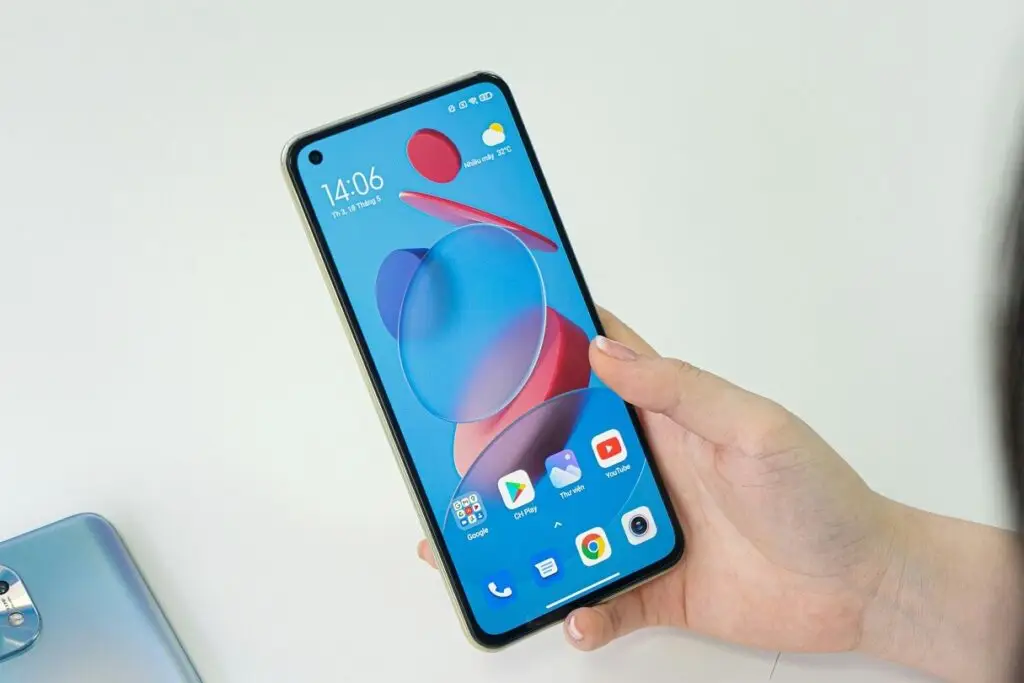
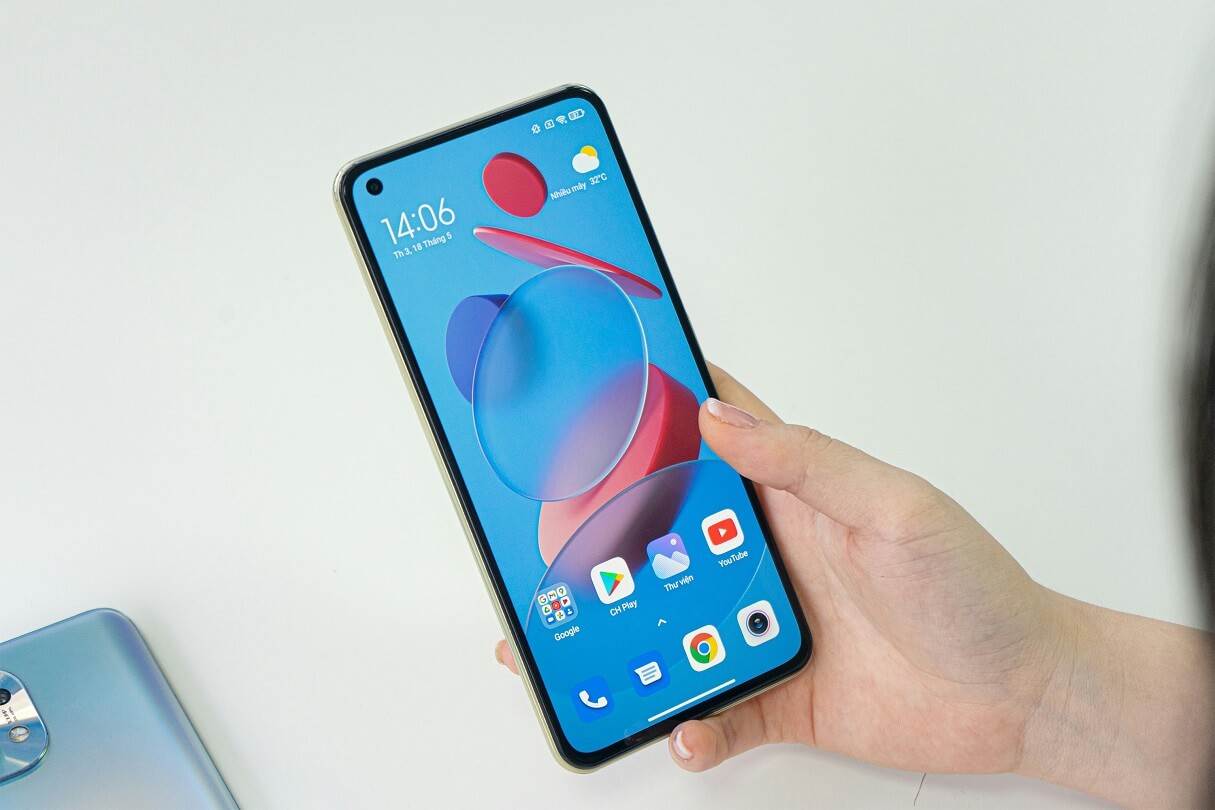
The first lesson in how to use a smartphone for beginners is learning the physical parts of the phone. Hold the phone so the screen faces you. The long button on the right side is usually the power or side button. Press it once to wake the screen or turn the screen off. Do not hold it down unless you want to see power or emergency options.
On the left side, you may see two volume buttons. The upper button makes sound louder, and the lower button makes it quieter. Some iPhones also have a Ring/Silent switch or Action button. Android phones may place the power and volume buttons on the same side.
At the bottom is the charging port. Plug the correct charging cable into this port gently. Do not force it. If the cable does not fit easily, turn it around or check that you have the correct charger.
Understanding the touchscreen
The large front area is the touchscreen. You control it with your finger. When the screen is dark, press the side button or tap the screen.
The phone may ask for one of the following:
- A number passcode
- A fingerprint
- A face scan
- A pattern drawn on the screen
These security methods protect your information. Use a passcode that is difficult for strangers to guess. Avoid simple codes such as 123456, 000000, or your year of birth. Do not write the passcode on the phone case.
Understanding the Home Screen
The first screen after unlocking is called the Home Screen. Small pictures on it are called app icons.
Common icons include:
- A telephone receiver for calls
- A speech bubble for text messages
- A camera for taking photos
- A gear for Settings
- A map pin for directions
- A clock for alarms and timers
When learning how to use a smartphone for beginners, remember these four rules:
- Press the side button once to wake or lock the phone.
- Tap an icon once to open it.
- Look for a back arrow to return to the previous screen.
- Return to the Home Screen when you feel lost.
On an iPhone without a Home button, swipe up from the bottom edge to return home. On an older iPhone with a round Home button, press that button once. Many Android phones use a Home button at the bottom or a swipe-up gesture.
Practice opening Settings and returning home five times. This simple exercise builds confidence and creates a safe starting routine for how to use a smartphone for beginners.
Set Up the Screen So It Is Easy to See, Hear, and Touch
A major part of how to use a smartphone for beginners is making the phone comfortable. Many people struggle because the text is too small, the screen turns off too quickly, or the ringer is too quiet. These are settings problems, not personal failures.
Increase the text size on an iPhone
On an iPhone:
- Open Settings.
- Tap Display & Brightness.
- Tap Text Size.
- Move the slider until the words are easy to read.
For even larger text:
- Open Settings.
- Tap Accessibility.
- Tap Display & Text Size.
- Tap Larger Text.
- Move the slider to the preferred size.
Apple also offers Display Zoom, bold text, spoken content, VoiceOver, AssistiveTouch, and touch-response adjustments. These tools may help people with low vision, hearing difficulties, hand tremors, or limited movement.
Increase the text size on Android
On Android, open Settings and use the search box at the top. Search for:
- Font size
- Display size
- Magnification
- Hearing
- Accessibility
- Touch and hold delay
The exact menu path depends on the phone brand. Increase both font size and display size when the icons and words are difficult to see.
You can also increase the ringer volume, turn on vibration, and activate flash notifications on many phones.
Make the Home Screen simpler
Keep only the most useful apps on the first page:
- Phone
- Messages
- Camera
- Photos or Gallery
- Maps
- Clock
- Settings
Ask a trusted person to move rarely used icons to another page. Add important contacts to Favorites so you can call them quickly.
A useful step by step iPhone tutorial for seniors should also include Siri. Siri is Apple’s voice assistant. You can say:
- “Siri, call John.”
- “Siri, set a timer for 10 minutes.”
- “Siri, remind me to take my medicine at 8 p.m.”
- “Siri, what is the weather today?”
Android phones offer Google Assistant or Gemini features, depending on the device.
Do not change many settings at once. After each change, test the phone. Check whether you can read the time, hear a call, and tap the icons comfortably.
This is the practical side of how to use a smartphone for beginners: adjust the device to fit your needs instead of forcing yourself to fit the device.
Learn the Basic Touchscreen Gestures Without Fear
To understand how to use a smartphone for beginners, you need five touchscreen actions: tap, touch and hold, swipe, scroll, and pinch.
These actions are easier when you use the soft pad of your finger instead of your fingernail.
Tap
A tap means touching the screen once and lifting your finger quickly.
Use a tap to:
- Open an app
- Choose a contact
- Press Send
- Select a menu
- Answer a question
- Turn a setting on or off
Tap an app icon only once. Tapping repeatedly may open more than one screen or make the phone respond slowly.
Touch and hold
Touch and hold means placing your finger on an item for about one second.
This action often opens additional choices. For example, touching and holding a message may display options such as:
- Copy
- Forward
- Reply
- Delete
- Save
Do not use touch and hold until you are comfortable with normal tapping.
Swipe
A swipe is a quick movement across the screen.
You may swipe:
- Up to return home on many phones
- Down from the top to see notifications
- Left or right to move between pages
- Across a photo to view the next picture
- Across an incoming-call button to answer
On an iPhone, Control Center offers quick access to brightness, volume, the flashlight, Airplane Mode, and other useful controls.
Scroll
A scroll is a slower upward or downward movement. Put your finger near the middle of the screen and slide it.
The page moves in the opposite direction from your finger. To read information lower on a page, slide your finger upward.
Pinch and zoom
Pinching uses two fingers.
Place two fingers on a photo or map and move them apart to zoom in. Move the fingers together to zoom out.
Beginners often worry that one wrong touch will damage the phone. In most situations, it will not.
When you feel lost:
- Look for a back arrow.
- Swipe up from the bottom or press Home.
- Lock the phone and unlock it again.
- Close the app and reopen it.
- Ask for help before deleting, buying, or paying for anything.
Practice is central to how to use a smartphone for beginners. Open Photos, swipe between pictures, zoom in, zoom out, and return home.
A smartphone basics class for seniors works best when one gesture is practiced several times before a new gesture is introduced. This repetition is one of the most effective methods for teaching how to use a smartphone for beginners.
Make Calls, Save Contacts, and Answer the Phone
The next stage of how to use a smartphone for beginners is making and receiving calls.
Open the Phone app. It usually has a telephone receiver icon. At the bottom of the screen, you may see:
- Favorites
- Recents
- Contacts
- Keypad
- Voicemail
Call a saved contact
To call someone whose number is already saved:
- Open the Phone app.
- Tap Contacts.
- Choose the person’s name.
- Tap the telephone number or call button.
- Wait for the person to answer.
Call a new number
To call a number that is not saved:
- Open the Phone app.
- Tap Keypad.
- Enter the telephone number.
- Check the number carefully.
- Tap the green call button.
During the call, you may see buttons for Speaker, Mute, Keypad, and End.
Tap Speaker when you want to hear the caller without holding the phone against your ear. Tap Mute when you want the other person to stop hearing you. Tap the red button to end the call.
Answer an incoming call
When someone calls, the phone displays the caller’s name or number.
Depending on your phone, you may need to:
- Tap Answer
- Slide the green phone icon
- Swipe upward
- Press a physical button
When you do not recognize a number, you can let the call go to voicemail. Caller ID can be changed or “spoofed,” so a familiar-looking name or local number does not prove that the caller is genuine.
Save a contact
To save someone’s number:
- Open Phone or Contacts.
- Tap the plus sign.
- Enter the person’s name.
- Enter the telephone number.
- Tap Save.
Add your closest family members, doctor, pharmacy, trusted neighbor, and emergency contacts. Test each important number by calling it once.
Voicemail stores a spoken message when you do not answer. Open the Phone app and tap Voicemail to listen.
Never call back only because a recorded message says you owe money, won a prize, or face arrest. Contact the organization through a number you already trust.
For extra safety, set up Emergency SOS and emergency contacts with help from a trusted person. The exact buttons differ by phone model. Write the correct instructions on paper and keep them near your charger.
Emergency practice should always be included when explaining how to use a smartphone for beginners.
How to Text on a Smartphone for Beginners?
Many people searching for how to use a smartphone for beginners mainly want to learn texting.
A text message is a short written message sent to another phone. The app may be called Messages, Google Messages, Samsung Messages, or something similar.
How to send your first text message?
Here is how to text on a smartphone for beginners:
- Open the Messages app.
- Tap the new-message or compose button.
- In the “To” box, type a contact’s name or telephone number.
- Tap the message box near the bottom.
- Type your message with the onscreen keyboard.
- Read the message once.
- Tap the Send arrow.
The compose button may look like:
- A pencil
- A plus sign
- A speech bubble
- A square with a pencil inside it
In Google Messages, the normal process is to open Messages, tap Start chat, choose a person, type in the message box, and tap Send.
On an iPhone, open Messages, tap the compose icon, select a contact, type your message, and tap the upward arrow.
Try this practice message:
“Hello, I am practicing texting. Please reply when you see this.”
When the reply arrives, a notification may appear at the top of the screen. Tap the notification to open the conversation. You can also open Messages later and tap the person’s name.
Correct a typing mistake
To correct a word:
- Tap near the incorrect word.
- Move the cursor if necessary.
- Press the backspace key.
- Type the correct letters.
- Read the message again.
The keyboard may suggest words above the letters. Tap a suggested word only when it is correct.
The microphone icon can turn your voice into written text. Tap the microphone, speak slowly, and then check every word before sending.
Send a photo by text
A useful step by step iPhone tutorial for seniors should explain photo messages.
Inside a conversation:
- Tap the camera or photo icon.
- Choose a picture.
- Check that the correct person is selected.
- Tap Send.
Never send passwords, verification codes, banking details, identification documents, or private photos unless you clearly understand why they are needed.
The most important rule in how to text on a smartphone for beginners is to pause before opening a link. Fake delivery notices, prize messages, account warnings, and urgent family requests are common scams.
The FTC warns that fraudulent texts may try to steal passwords, account numbers, Social Security numbers, and other personal information.
Scam awareness is therefore a necessary part of how to use a smartphone for beginners.
Connect to Wi-Fi, Use the Internet, and Install Apps Safely
Learning how to use a smartphone for beginners also means understanding how the phone connects to the internet.
A smartphone normally uses either Wi-Fi or mobile data.
What is Wi-Fi?
Wi-Fi connects your phone through an internet network in a home, office, library, hotel, restaurant, or shop.
To connect to your home Wi-Fi:
- Open Settings.
- Tap Wi-Fi or Connections.
- Turn Wi-Fi on.
- Choose your network name.
- Enter the Wi-Fi password.
- Tap Connect or Join.
After the first successful connection, the phone normally remembers the network.
What is mobile data?
Mobile data connects through your telephone company when Wi-Fi is unavailable.
Your phone plan may limit the amount of mobile data you can use. Watching videos, downloading large files, and making long video calls can use a large amount of data.
When you are at home, connecting to trusted Wi-Fi may help reduce mobile-data use.
Avoid entering passwords, banking details, or payment information while using unknown public Wi-Fi unless you understand the security risks.
Use a web browser
A web browser lets you visit websites.
On an iPhone, the browser is often Safari. On Android, it is often Chrome.
To search:
- Open the browser.
- Tap the address or search bar.
- Type your question.
- Tap Search or Go.
- Review the results.
Read the website name before trusting information. Advertisements can look like normal buttons.
Do not tap pop-ups saying:
- “Your phone is infected.”
- “Download now.”
- “You have won a prize.”
- “Your account will be closed.”
- “Fix your phone immediately.”
Install apps carefully
Apps are programs that add new features to your phone.
Download iPhone apps from the Apple App Store. Download Android apps from Google Play.
Before installing an app, check:
- The app’s exact name
- The developer’s name
- The number of downloads
- Recent reviews
- The price
- Subscription charges
- Requested permissions
A flashlight app should not require access to your contacts. A basic game should not need your banking information.
For how to use a smartphone for beginners, start with only a few useful apps:
- Weather
- Maps
- Video calling
- Calendar
- Reminders
- Your pharmacy’s official app
- Your healthcare provider’s official app
Keep the phone updated. Updates repair problems and improve security. Charge the phone, connect to Wi-Fi, and install updates through Settings.
Do not accept an “update” offered through an unexpected text message or website pop-up.
This part of how to use a smartphone for beginners is about control. You decide which apps are installed and which permissions they receive.
When unsure, close the screen and ask a trusted person. Safe app choices are an important lesson in how to use a smartphone for beginners.
Take Photos, Use Maps, and Try Helpful Everyday Tools
Once the basics feel comfortable, how to use a smartphone for beginners becomes more enjoyable.
The camera, photos, maps, alarm, calendar, flashlight, and voice assistant can make everyday tasks easier.
Take a photo
To take a photo:
- Open Camera.
- Point the phone toward the subject.
- Check the picture on the screen.
- Hold the phone still.
- Tap the large round shutter button.
Wait for a second before moving the phone. This can help prevent blurry pictures.
Record a video
To record a video:
- Open Camera.
- Choose Video mode.
- Tap the red record button.
- Record the activity.
- Tap the button again to stop.
Open Photos or Gallery to view the video.
View and share photos
Open Photos or Gallery and tap a picture to make it larger. Swipe left or right to see another picture. Move two fingers apart to zoom in.
To share a photo:
- Open the picture.
- Tap the Share icon.
- Choose Messages, email, or another trusted app.
- Select the recipient.
- Check the picture and recipient.
- Tap Send.
Be careful with Delete. Deleted pictures may move to a Recently Deleted or Trash folder for a limited period, but it is better to check before removing anything.
Use Maps
Maps can provide directions.
- Open Apple Maps or Google Maps.
- Tap the search box.
- Type the destination.
- Choose the correct place.
- Tap Directions.
- Select walking, driving, or public transport.
- Review the route.
Set up the route before the vehicle starts moving. Use spoken directions and keep your attention on the road while driving.
Try other helpful tools
Your phone may include:
- Clock: Set alarms and timers.
- Calendar: Save appointments and birthdays.
- Reminders: Create task lists.
- Calculator: Complete basic calculations.
- Flashlight: See in dark places.
- Notes: Save shopping lists.
- Voice assistant: Make calls or set reminders.
Official iPhone guidance groups important skills around setup, personalization, camera use, communication, family features, and daily routines.
That is a useful learning order for how to use a smartphone for beginners. First, make the device comfortable. Next, learn communication. Then add useful tools.
Do not try every feature at once. Practice Camera and Alarm this week. Add Maps next week. This gradual approach keeps how to use a smartphone for beginners simple.
A smartphone basics class for seniors should connect each lesson to a real task. Learning becomes meaningful when you can say, “Now I can send my daughter a photo,” or “Now I can set a reminder for my appointment.”
Real-life success makes how to use a smartphone for beginners easier to remember.
Protect Your Phone, Money, Accounts, and Personal Information
Safety is an essential part of how to use a smartphone for beginners.
A smartphone may contain contacts, photos, emails, bank apps, health information, and saved passwords. Protecting it is as important as protecting your wallet.
Use a screen lock
Set the phone to lock when you are not using it.
The FTC recommends locking a smartphone and using a passcode. It also advises using at least a six-digit passcode when that option is available.
A fingerprint or face scan can make unlocking easier, but you should still keep the passcode private.
Install official updates
Install system and app updates through the phone’s Settings menu or official app store.
Updates can repair software problems and close security weaknesses. Connect to trusted Wi-Fi and charge the phone before installing a large update.
Protect your accounts
Use different passwords for important accounts, especially:
- Banking
- Social media
- Shopping
- Healthcare portals
- Cloud storage
Turn on two-step verification when possible. This may require an additional code when someone tries to sign in.
Never share a verification code with a caller or text sender.
Learn the warning signs of scams
Be careful when:
- A message creates fear or urgency.
- Someone demands immediate payment.
- A caller asks for gift cards.
- A message requests cryptocurrency.
- Someone asks you to make a wire transfer.
- A stranger asks to control your screen.
- A text asks for a password.
- A caller says you must keep the conversation secret.
- A prize requires payment before you receive it.
- A “family member” asks for emergency money from a new number.
The FTC warns that caller ID may be spoofed. It also identifies payment demands involving gift cards, cryptocurrency, payment apps, or wire transfers as common scam warning signs.
When a message appears to come from your bank, delivery company, government office, or family member, do not use the link or number in the message.
Contact the organization using:
- Its official app
- A number printed on your bank card
- A trusted statement
- A number you saved earlier
- Its verified official website
The safest habit in how to use a smartphone for beginners is “stop, check, and ask.”
Stop before acting. Check through a trusted method. Ask someone you know.
Real organizations normally allow you time to verify information. Scammers often try to stop you from thinking carefully.
Back up important photos and contacts through Apple iCloud, Google backup, or another trusted service. Also learn how to locate or erase a lost phone.
Complete these safety steps with a trusted family member, phone-store technician, library instructor, or community technology teacher. These protections should accompany every lesson about how to use a smartphone for beginners.
A Seven-Day Smartphone Basics Class for Seniors
A structured practice plan makes how to use a smartphone for beginners less stressful.
Instead of studying for several hours, practice for 20 to 30 minutes each day. Keep a notebook beside you and write down the steps that work on your phone.
Day 1: Wake, unlock, and return home
Practice:
- Pressing the side button
- Entering your passcode
- Opening one app
- Returning to the Home Screen
- Locking the screen
Repeat the process five times.
Day 2: Make and receive calls
Call a trusted family member.
Practice:
- Choosing a contact
- Increasing the volume
- Turning Speaker on and off
- Ending the call
Ask the person to call you back so you can practice answering.
Day 3: Send and read text messages
Follow the lesson on how to text on a smartphone for beginners.
Send three short messages. Practice correcting one word and replying to an incoming message.
Do not include private information in the practice texts.
Day 4: Take and share a photo
Take photos of:
- A cup
- A plant
- A chair
- A room
Open Photos, swipe between the pictures, zoom in, and send one photo to a trusted person.
Day 5: Use Wi-Fi and search online
Check that your home Wi-Fi is connected.
Open the browser and search for:
- Tomorrow’s weather
- A simple recipe
- A local store
- A familiar news website
Practice recognizing advertisements and normal search results.
Day 6: Set an alarm and use Maps
Set an alarm for five minutes later. Wait for it to ring and then turn it off.
Open Maps and search for a familiar place. Review the route without starting a trip.
Day 7: Review safety and emergency steps
Check:
- The screen lock
- Emergency contacts
- Software updates
- Photo backup
- Scam warning signs
- Emergency SOS instructions
Practice rejecting an unknown call and deleting a suspicious text without opening its link.
This is a practical smartphone basics class for seniors because it uses repetition and real tasks.
When teaching someone how to use a smartphone for beginners, do not take the phone and complete every step for the learner. Point to the correct area, explain one action, and let the learner tap it.
Use the same words every time. Avoid statements such as, “It is obvious,” or “Just do this.” What feels easy to an experienced user may be completely new to a beginner.
At the end of seven days, repeat the plan. Speed is not the goal. The goal is being able to perform useful tasks calmly and safely.
That is the real purpose of how to use a smartphone for beginners.
Common Smartphone Problems and Simple Fixes
Even after learning how to use a smartphone for beginners, you may face small problems. Most have a simple cause.
Knowing these fixes makes how to use a smartphone for beginners less frustrating.
The screen is black
Press the side button once.
When nothing happens:
- Connect the charger.
- Check that the charger is plugged into a working socket.
- Wait for several minutes.
- Try pressing the side button again.
The phone has no sound
Press the upper volume button.
Also check:
- Silent mode
- Do Not Disturb
- Bluetooth
- Ringer volume
- Connected headphones
Sound may be playing through wireless headphones or another Bluetooth device.
An app is frozen
Return to the Home Screen and open the app again.
When the problem continues:
- Close the app.
- Restart the phone.
- Check for an update.
- Ask for help if the app still does not work.
The internet is not working
Check whether Wi-Fi or mobile data is turned on.
You can also:
- Turn Airplane Mode on.
- Wait for about ten seconds.
- Turn Airplane Mode off.
- Try the internet again.
- Restart the phone or home router if needed.
The keyboard has disappeared
Tap inside the text box. The keyboard should return.
When it does not appear, close and reopen the app.
The text is too small
Open Settings and search for:
- Text Size
- Font Size
- Display Size
- Accessibility
- Magnification
You cannot find an app
Swipe down on the Home Screen and type the app’s name in Search. On Android, you may also open the full app list.
The battery runs down quickly
Try:
- Lowering screen brightness
- Turning off unused Bluetooth connections
- Updating the phone
- Checking battery settings
- Reducing long video sessions
- Removing apps you do not use
An older battery may need professional service.
You deleted something accidentally
Look for:
- Undo
- Trash
- Recently Deleted
- Recycle Bin
- Restore
Do not continue making changes until you understand what happened.
An important skill in how to use a smartphone for beginners is describing the problem clearly. Instead of saying, “The phone does not work,” note what you tapped, what appeared, and the exact error message.
Take a screenshot when possible. This helps a family member or technician understand the problem.
Restarting is generally safe and does not normally delete your information. However, do not select Factory Reset, Erase All Content, or Delete Account unless you understand the result and have a backup.
Careful troubleshooting is part of how to use a smartphone for beginners because it teaches you to recover without panic.
Frequently Asked Questions
What is the easiest way to learn how to use a smartphone for beginners?
Start with four actions:
- Unlock the phone.
- Return to the Home Screen.
- Make a call.
- Send a text.
Practice one short lesson each day. Keep written steps for your exact phone. Repeating the same sequence is a reliable way to learn how to use a smartphone for beginners.
Learning becomes easier when each lesson solves a real need.
Is an iPhone or Android phone easier for seniors?
Both types can work well.
An iPhone offers consistent menus and many built-in accessibility features. Android offers a wider choice of phone sizes, designs, and prices.
The easiest device may be the one used by a trusted family member who can provide help. A step by step iPhone tutorial for seniors is most useful when the learner already owns an iPhone.
How can I make a smartphone easier to read?
Increase the font and display size. You can also:
- Use bold text
- Raise the screen contrast
- Adjust brightness
- Use magnification
- Turn on spoken content
- Keep important icons on the first Home Screen
Apple offers text-size, Display Zoom, spoken-content, and other accessibility controls. Android phones also include display and accessibility settings, although names vary between brands.
How do I know whether a text message is a scam?
Be suspicious when a text:
- Creates urgency
- Asks for money
- Requests personal information
- Contains an unexpected link
- Claims there is an account problem
- Promises a prize
- Requests a verification code
Contact the company or person through a number you already trust. Do not reply with passwords, account numbers, or security codes.
Can I learn smartphone basics without paying for a class?
Yes. You can practice with this guide, use official Apple or Android support pages, ask a trusted person, or look for free programs at libraries, senior centers, and community organizations.
A smartphone basics class for seniors can be helpful when it allows learners to practice on their own devices. AARP also lists online technology-learning resources and smartphone classes.
What should I learn after the basic lessons?
After you understand calls and texts, learn:
- Video calling
- Calendar reminders
- Maps
- Photo sharing
- Backups
- Accessibility tools
- Safe online shopping
- Password protection
Add one skill at a time. A slow learning order keeps how to use a smartphone for beginners practical and manageable.
The goal is not to master every app. The goal is to use the phone independently, confidently, and safely.
Final Thoughts
Learning how to use a smartphone for beginners is a process, not a test. You are allowed to move slowly, repeat a lesson, write down steps, and ask questions.
Begin with:
- Physical buttons
- The screen lock
- The Home Screen
- Calls
- Text messages
Next, adjust the text and sound, practice using the camera, connect to Wi-Fi, and try a few useful apps.
The best results come from performing the steps yourself. Keep practice sessions short. Use the same phone each time.
Celebrate small achievements such as:
- Answering a call
- Sending a photo
- Setting an alarm
- Finding a saved contact
- Reading a text
- Opening Maps
These tasks show real progress.
Most importantly, combine confidence with caution. Lock the phone, install official updates, protect your passwords, and pause before responding to urgent calls or messages.
Author

admin@myncblogs.com
Related Posts
Jitterbug Phone Reviews: Is a Jitterbug the Right Phone for a Senior?
- 0
- 4,571 words
Buying a phone for an older adult is not only about choosing the largest screen or the cheapest monthly plan. The best...
Read out all
Best Cell Phone for Seniors: Easy Smartphones and Large-Button Phones for 2026
- 0
- 3,993 words
Choosing the best cell phone for seniors is not simply about finding the newest or most expensive device. A good senior-friendly phone...
Read out all